Acquire Freeze Frame and Log
1 1. Overview
Lidar freeze frames and logs allow you to trace the lidar's operating history, capture the moment of a fault, and locate the root cause of an issue. They are important operations for after-sales fault diagnosis and quality analysis. This document provides 3 different acquisition methods. You can choose the most suitable one based on the lidar's support level.
2 2. Lidar Model Support Matrix
| Lidar Family | Model | Freeze Frame (Script) | Freeze Frame (Web/LidarUtilities) | Log (Script) | Log (Web/LidarUtilities) |
|---|---|---|---|---|---|
| Pandar | Pandar128E3X | HTTP / PTC (0x30) | — | HTTP Command / PTC (0x38) | HTTP Web / LidarUtilities |
| QT | QT128C2X | HTTP Command | — | HTTP Command | HTTP Web / LidarUtilities |
| AT | AT128 | HTTP Command | HTTP Web | HTTP Command | HTTP Web |
| AT | AT128P | PTC (0x30) | LidarUtilities | — | LidarUtilities |
| AT | ATX | PTC (0x30) | — | PTC (0xFF, 0x00000022) | — |
| JT | JT128 | PTC (0xA1) | LidarUtilities | — | — |
| JT | JT64P | PTC (0xA1) | — | — | — |
| FT | FT120 | PTC (0xA1) | LidarUtilities | — | LidarUtilities |
| FT | FTX140 | PTC (0x30) | — | PTC (0xFF, 0x00000022) | — |
| FT | FTX180 | PTC (0x30) | — | PTC (0xFF, 0x00000022) | — |
| OT | OT128 | PTC (0x30) | LidarUtilities | PTC (0x38) | LidarUtilities |
Notes:
- The XT series does not support the corresponding features, so it is not listed in the table;
- The HTTP interface applies to the Pandar, QT, and AT128 series; among them, the Pandar_v5p5 series supports both HTTP and PTC commands.
3 3. Required Tools
| Software/Script | How to Obtain | Notes |
|---|---|---|
| LidarUtilities | HESAI official download page | From the official website |
| Get_lidar_data.py | Get_lidar_data.py | Unified script |
Note: Before using the script, web login, or LidarUtilities, make sure the lidar can be pinged from this PC
4 4. Operating Methods
4.1 4.1 Script-Based Acquisition
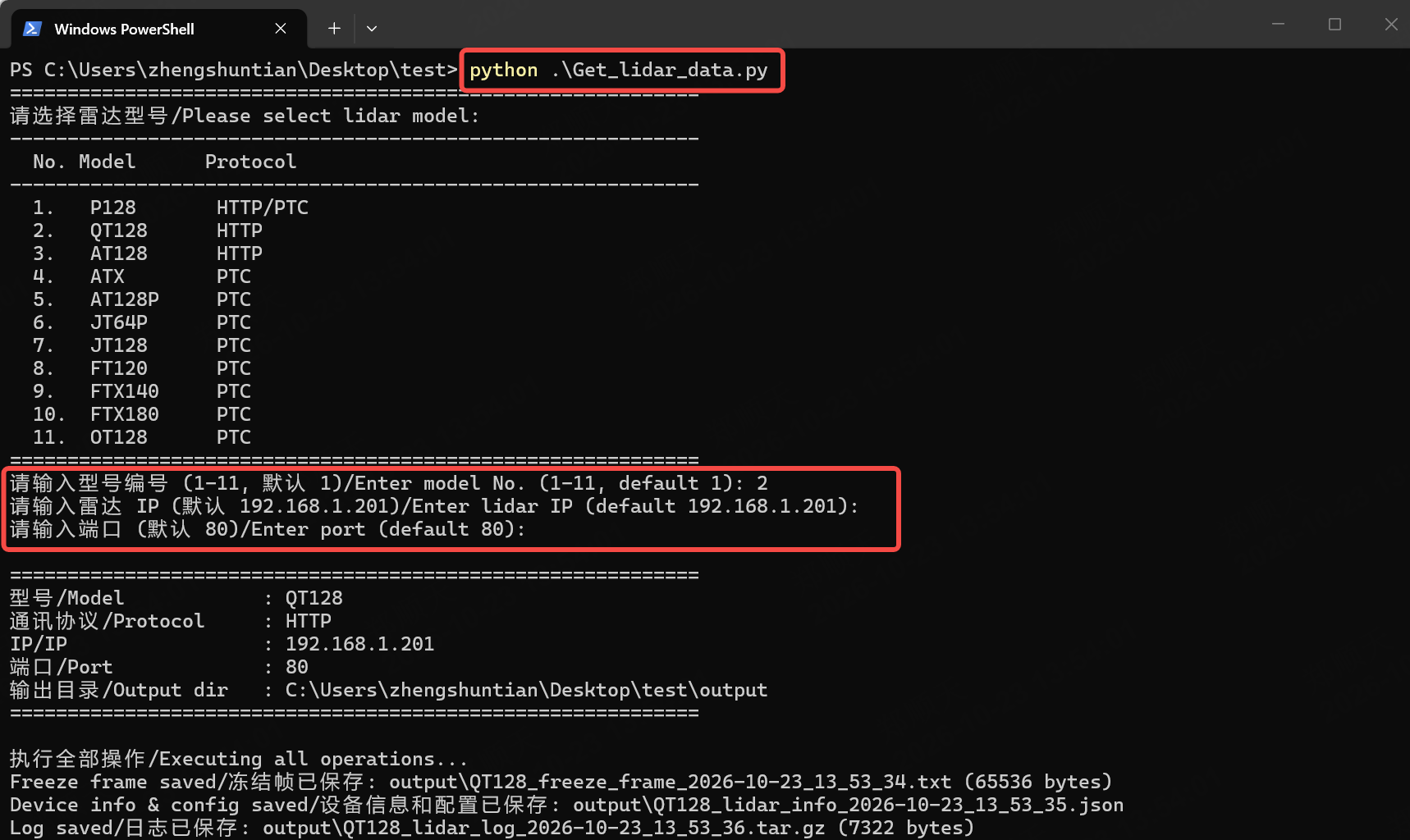
4.1.1 4.1.1 HTTP (Script) Acquisition: QT128 as an Example
-
Steps:
- Run the script;
- Enter the lidar model number, IP, and port;
- Files will be saved in the output folder under the script directory;
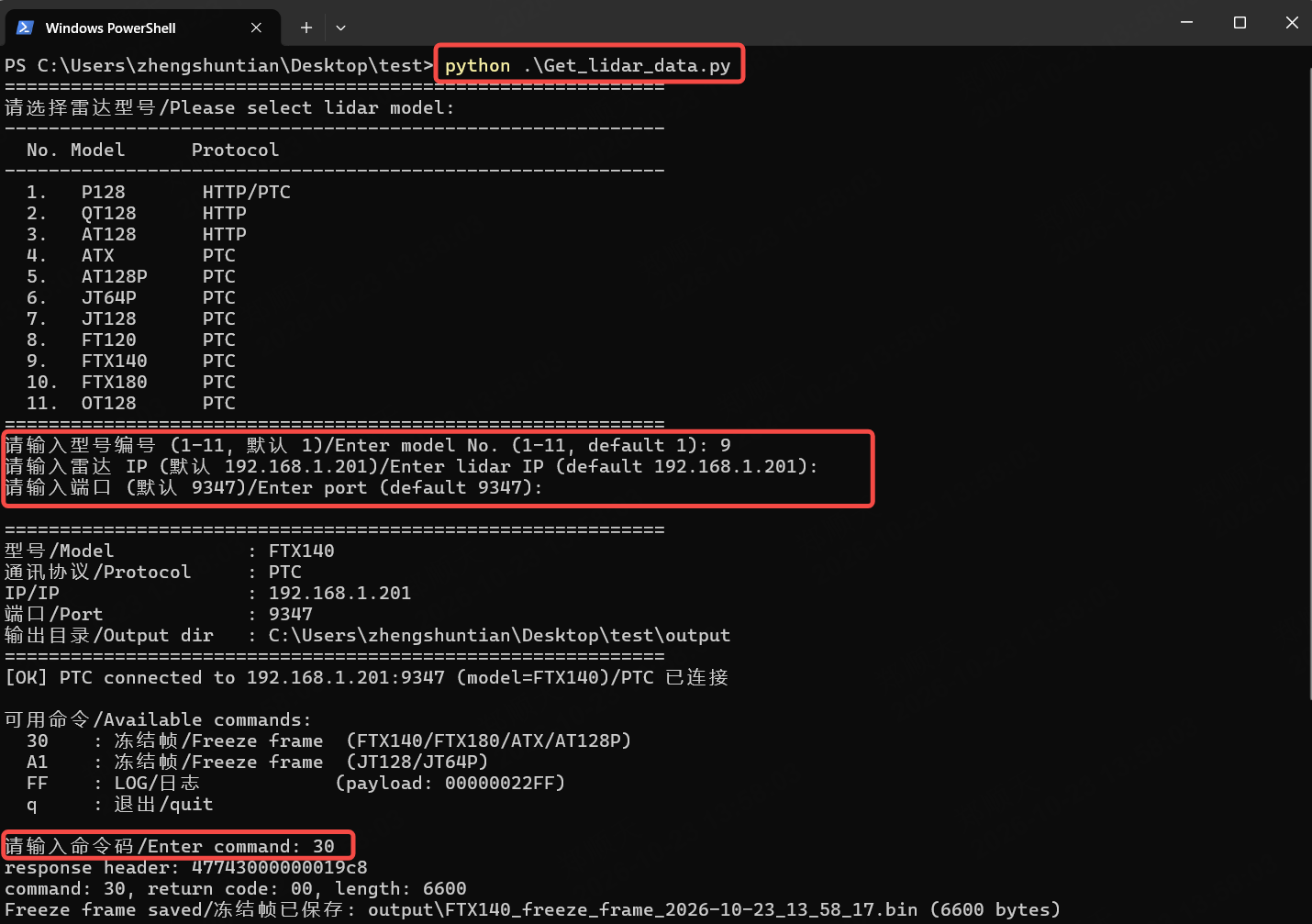
4.1.2 4.1.2 PTC Command (0x30) Acquisition: FTX140 as an Example
-
Steps (acquire freeze frame):
- Run the script;
- Enter the lidar model number, IP, and port;
- Enter the command code (30);
- Files will be saved in the output folder under the script directory;
-
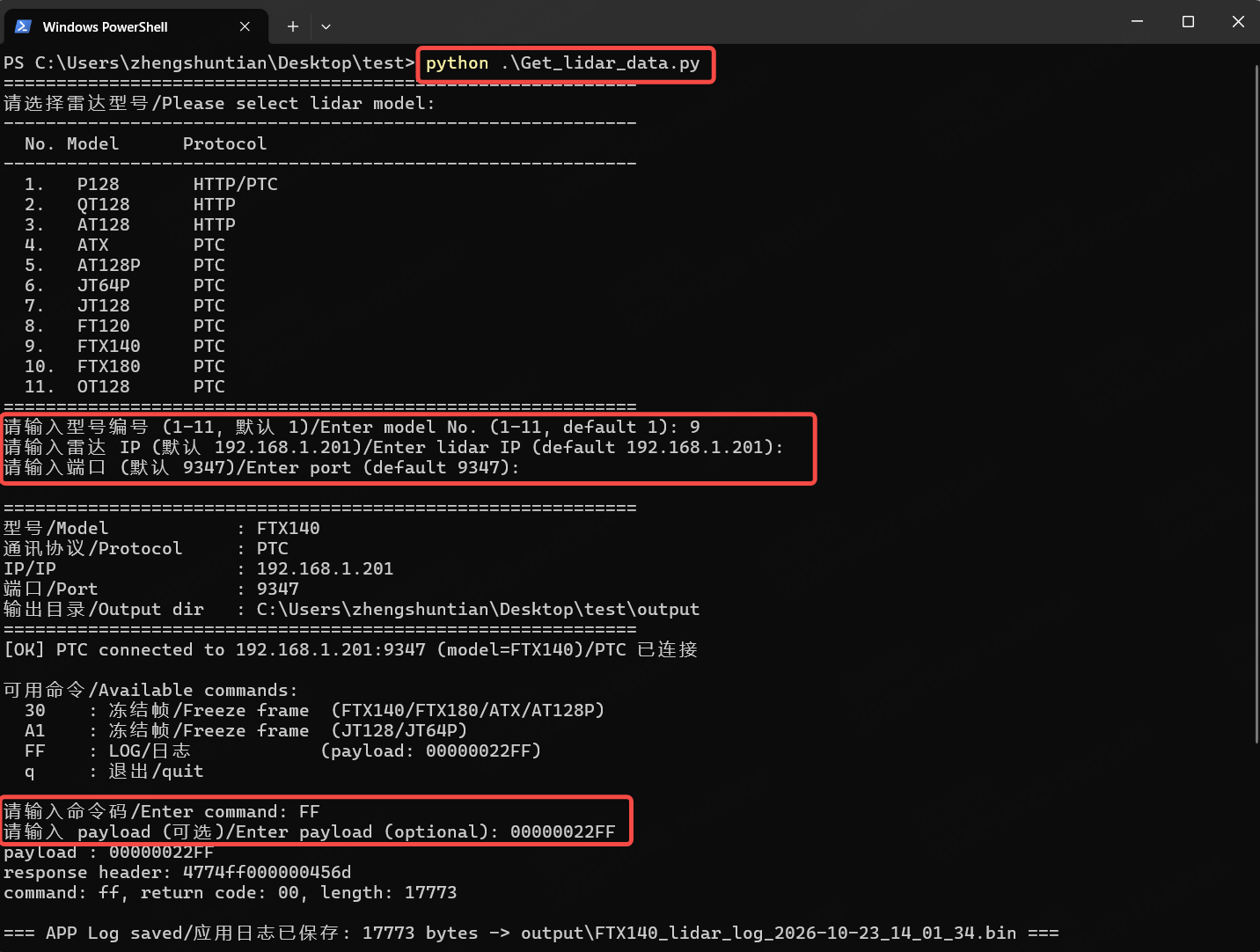
Steps (acquire Log):
- Run the script;
- Enter the lidar model number, IP, and port;
- Enter the command code (FF) and payload (00000022FF);
- Files will be saved in the output folder under the script directory;
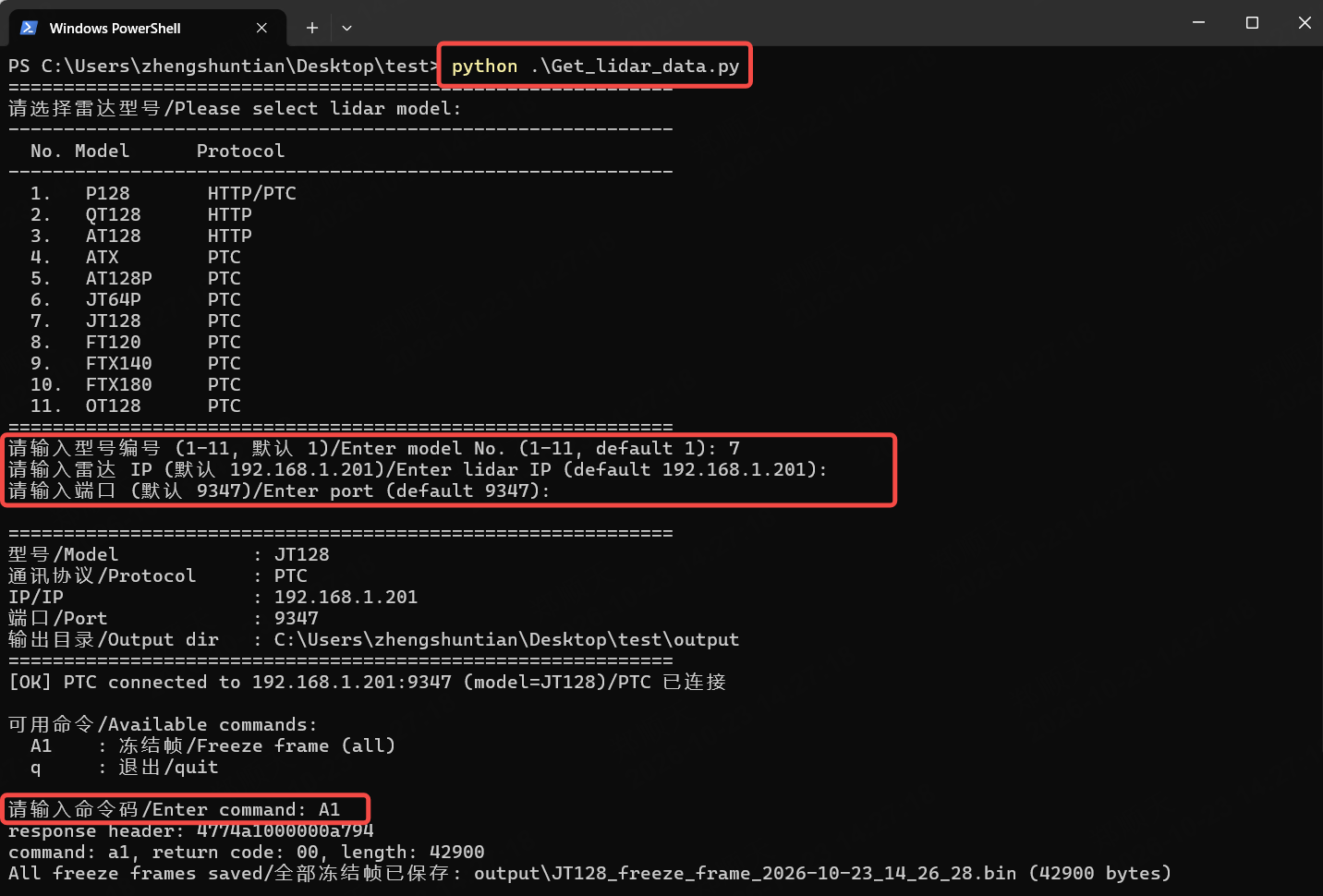
4.1.3 4.1.3 PTC Command (0xA1) Acquisition: JT128 as an Example
-
Steps:
- Run the script;
- Enter the lidar model number, IP, and port;
- Enter the command code (A1);
- Files will be saved in the output folder under the script directory;
4.2 4.2 Web / LidarUtilities Acquisition
4.2.1 4.2.1 Web Acquisition: AT128 as an Example
-
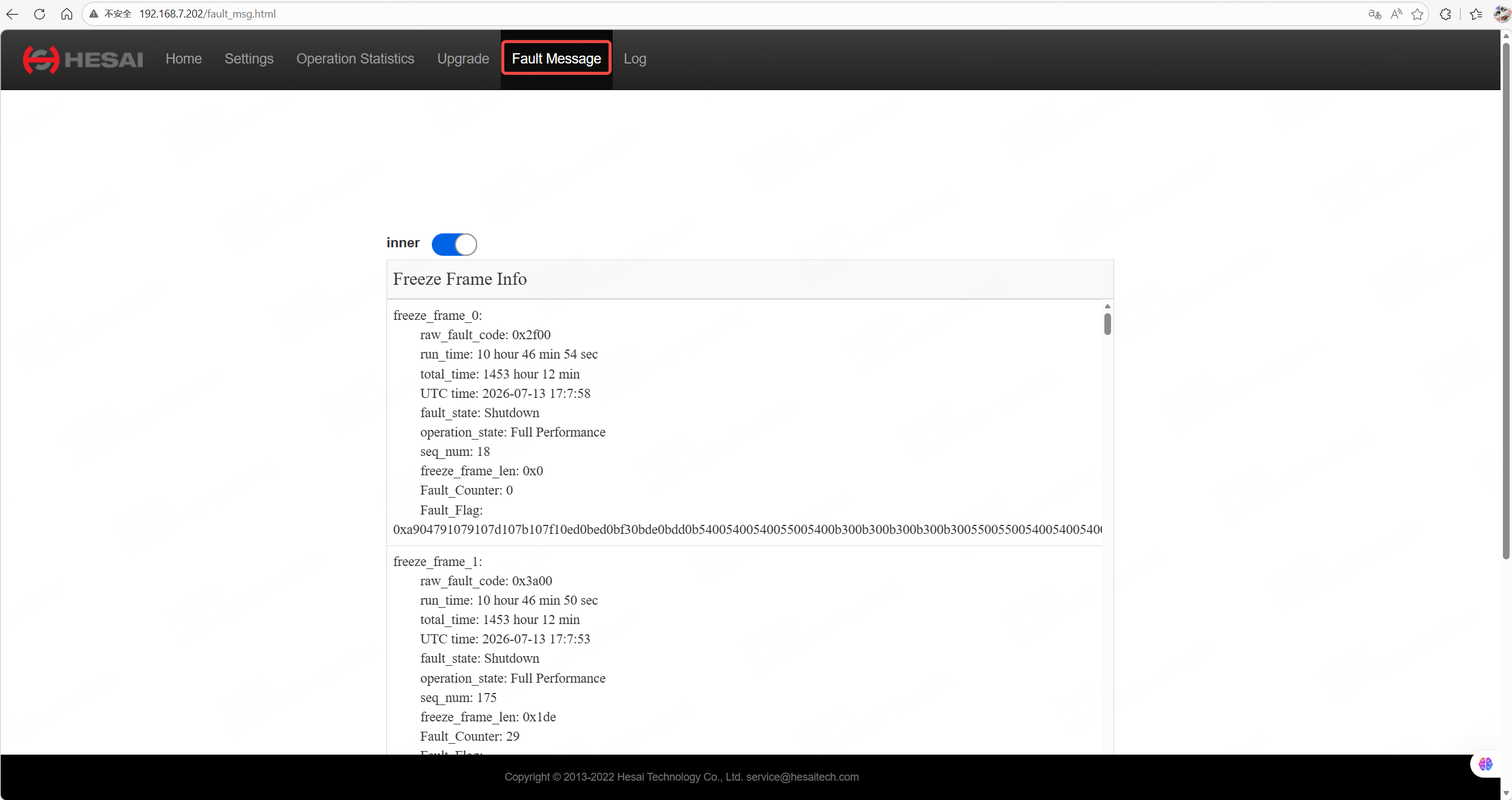
Steps (acquire freeze frame):
- Enter the lidar IP in the browser address bar;
- Go to the Fault Message page in the top navigation bar;
- Select and copy the freeze frame content;
-
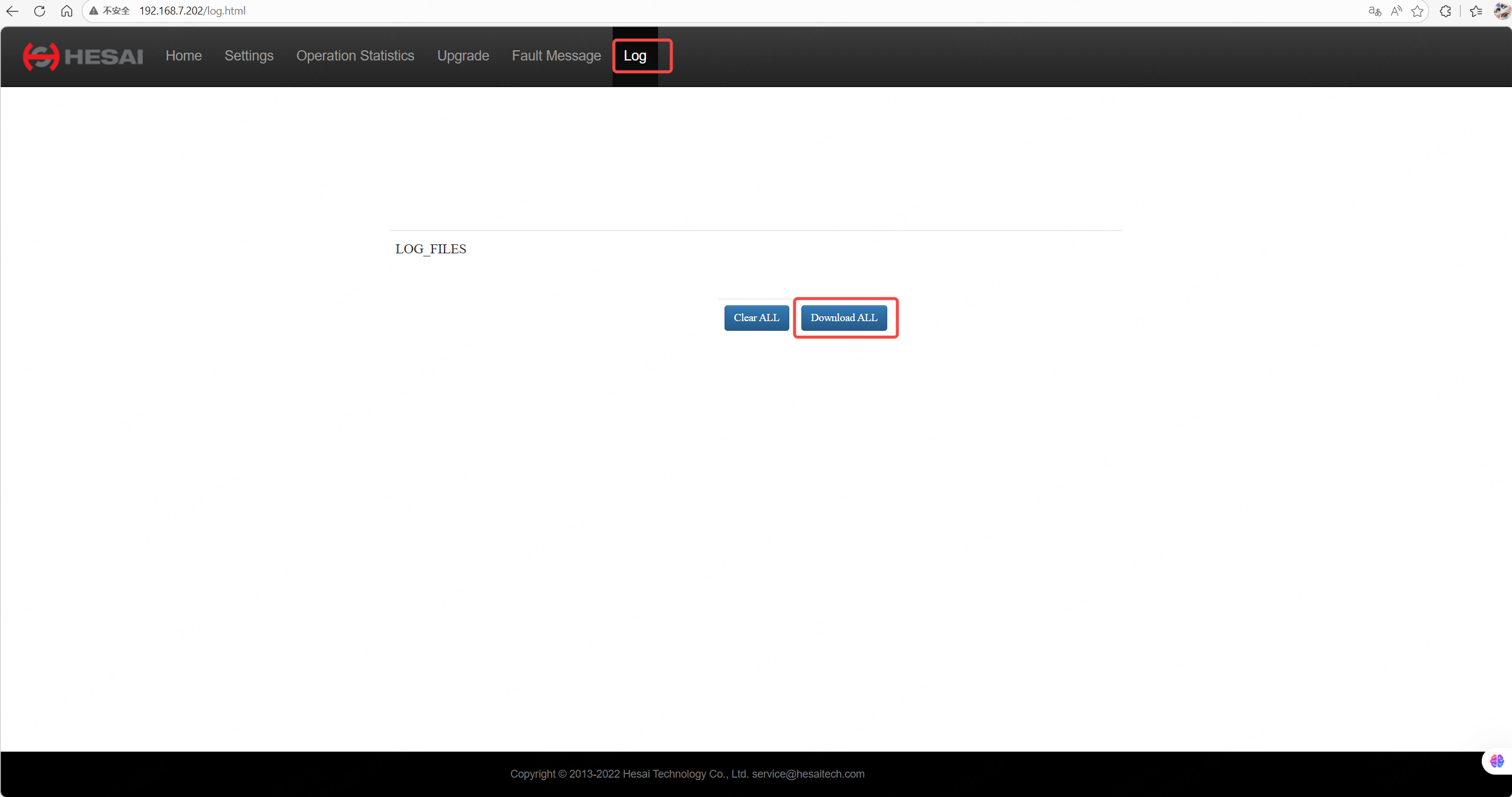
Steps (acquire Log):
- Enter the lidar IP in the browser address bar;
- Go to the Log page in the top navigation bar;
- Click Download ALL to download;
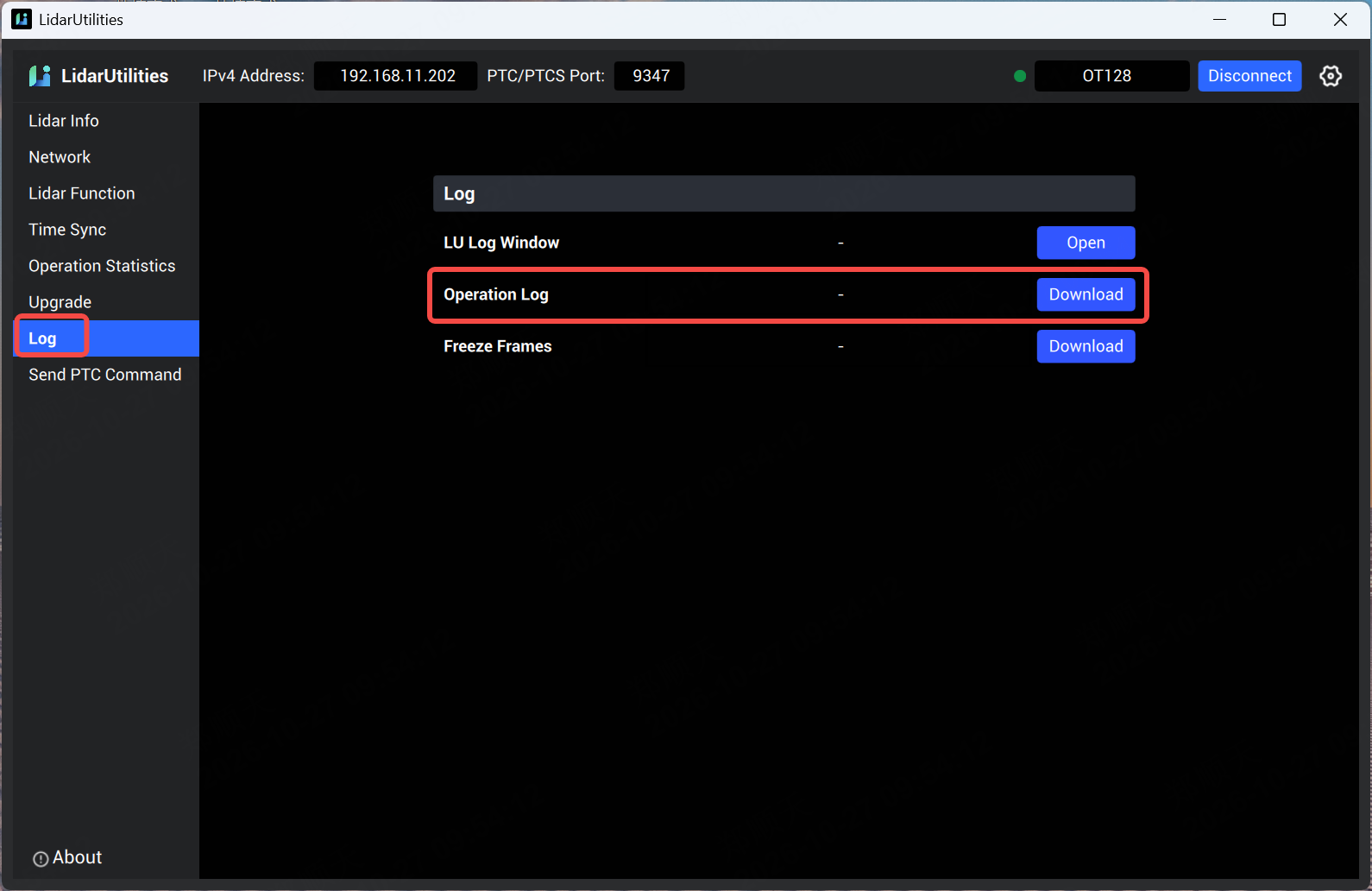
4.2.2 4.2.2 LidarUtilities Acquisition: OT128 as an Example
-
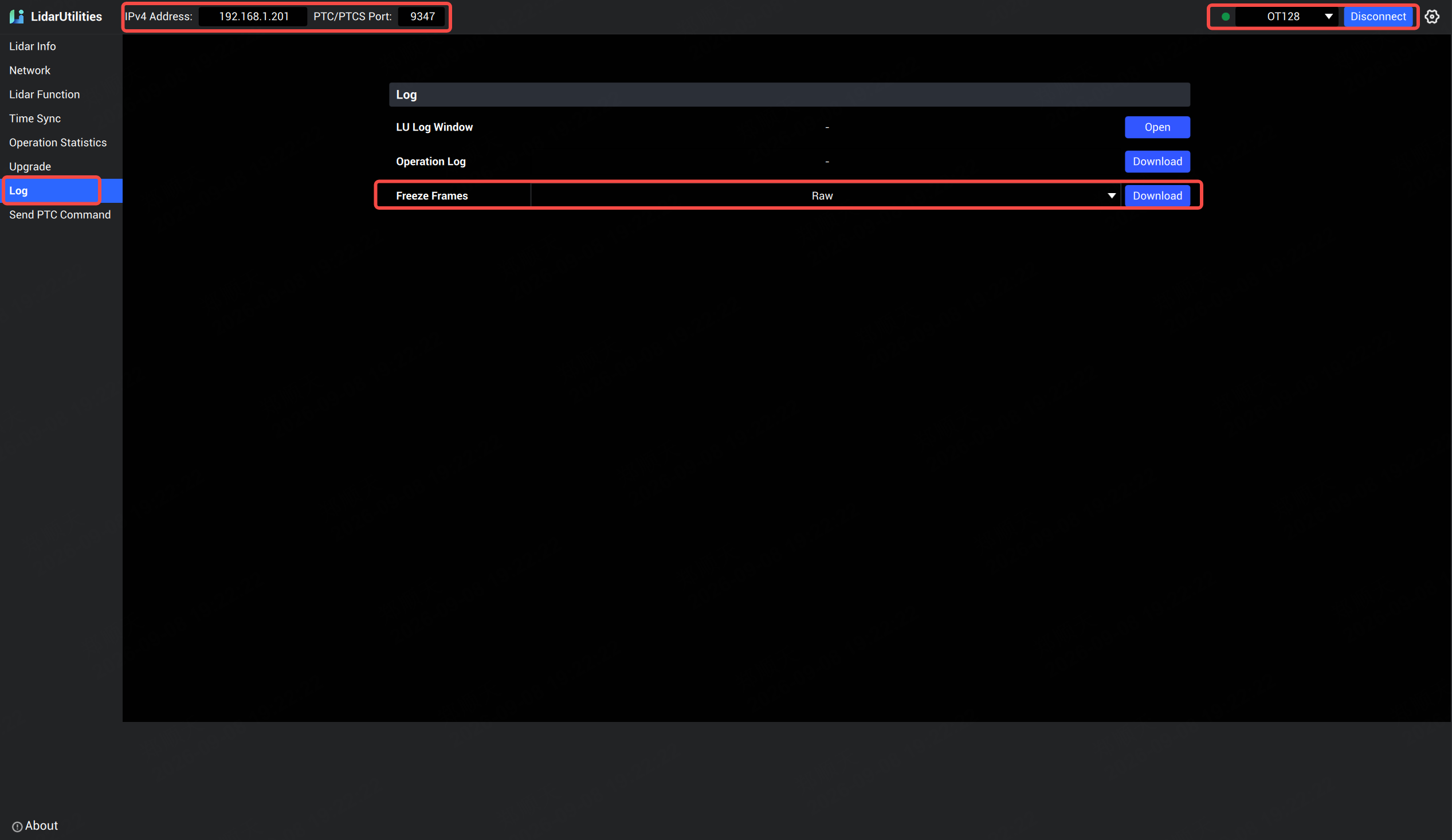
Steps (acquire freeze frame):
- Connect LU to the lidar (select the model at the top, enter the source IP, and click Connect);
- Click Log in the left navigation;
- Click Download next to Freeze Frames;
- A save dialog pops up automatically; choose the path;
-
Steps (acquire Log):
- Connect LU to the lidar (select the model at the top, enter the source IP, and click Connect);
- Click Log in the left navigation;
- Click Download next to Operation Log;
- A save dialog pops up automatically; choose the path;