Use PandarView
1 Overview
PandarView2 is an official visualization and debugging tool provided by Hesai. It can be used for real-time streaming display, recording and replay of lidar point clouds, as well as network/serial port connection verification.
2 Common Operations Instructions
2.1 Download and Installation
The latest version of the PandarView2 software and its User Manual can be downloaded from the Hesai official website. For information on system requirements (Windows, Ubuntu), hardware and driver configurations, supported lidar models and installation notes, please refer to the PandarView2 User Manual.
Note: On Ubuntu systems, the PandarView2 installation file is in .bin format. To install, navigate to the directory containing the .bin file and run the following commands:
sudo chmod +x PandarView_Release_Ubuntu_V2.1.7.bin # Replace with the actual version of the PandarView2 installation file
sudo ./PandarView_Release_Ubuntu_V2.1.7.bin
After successful installation, run the PandarView2 software using the following command in the installation directory:
Before using PandarView2 to display point clouds, ensure that:
- The lidar is functioning properly.
- The PC can receive UDP data packets from the lidar (this can be verified using Wireshark).
2.2 Launch and Connect
After launching PandarView2, click the second icon from the left on the toolbar (as shown below) to enter the data connection settings:

PandarView2 supports the following four methods to acquire and display point cloud data:
- Listen Net: Receive point clouds in real-time via Ethernet.
- Serial Port: Receive point clouds in real-time via a serial port (e.g., JT16).
- Pcap File: Read and replay saved .pcap files offline.
- Listen Net From TCP: Receive point clouds via a TCP interface.
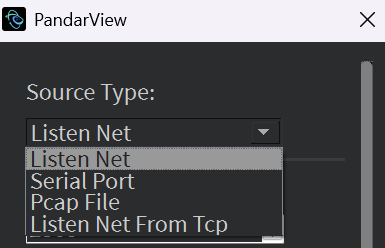
Take the "Listen Net" method as an example. After completing the configuration as shown below, click OK, and PandarView2 will automatically attempt to establish a connection.
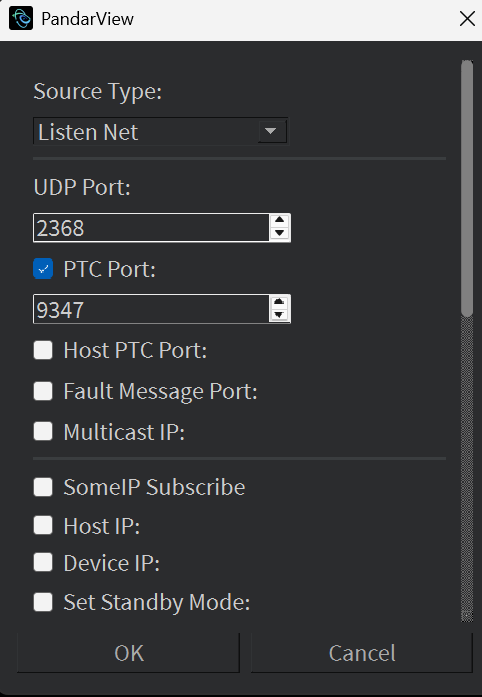
The configuration parameters in the figure are explained as follows:
| Parameter Name | Description |
|---|---|
| UDP Port | UDP port for lidar point cloud data |
| PTC Port | Control channel port for parameter configuration |
| Host PTC Port | TCP control port for the host |
| Fault Message Port | UDP port for receiving lidar fault codes |
| Multicast IP | Multicast address for multicast mode |
| SomeIP Subscribe | Enable SomeIP protocol subscription (for vehicle domain controller communication) |
| Host IP | IP address of the host |
| Device IP | Fixed IP address of the lidar device |
| Set Standby Mode | Enter standby mode |
2.3 Point Cloud Correction
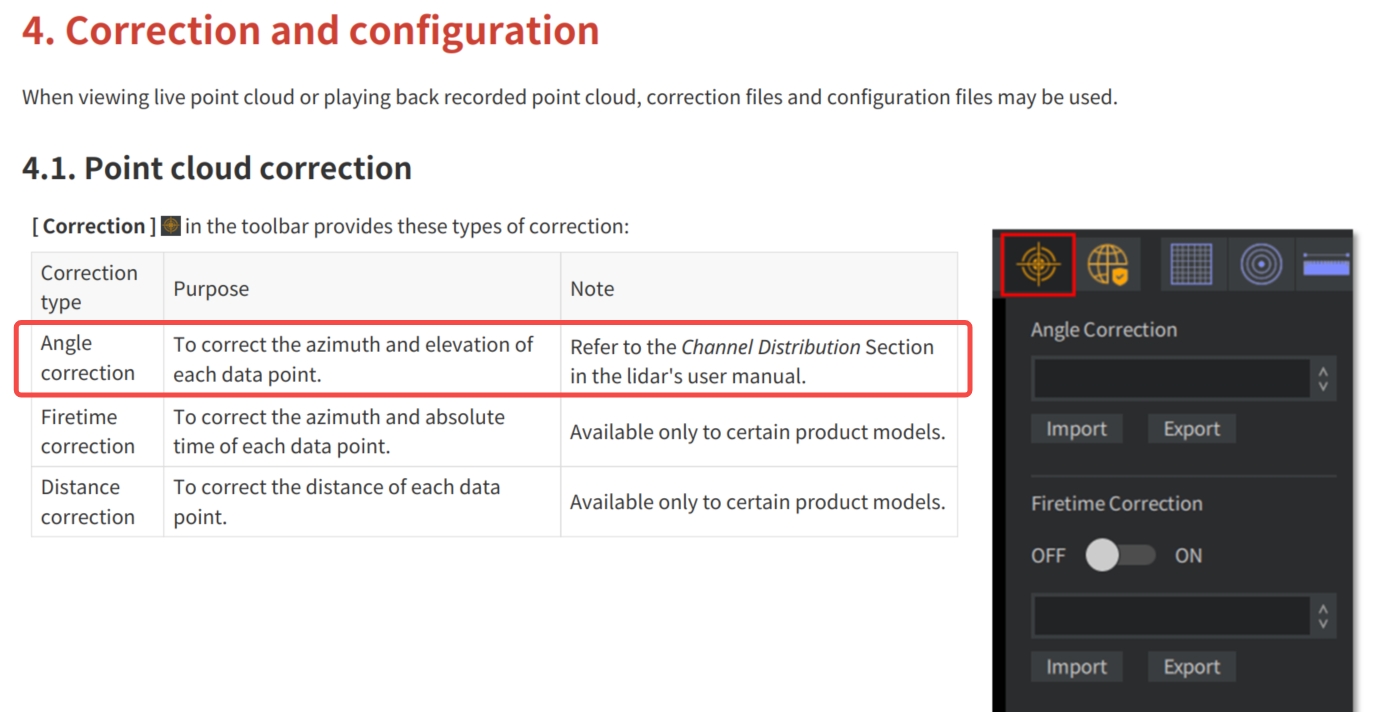
As shown below, the third icon from the left on the PandarView2 toolbar is the correction option. It supports importing correction files for real-time point cloud playback or offline .pcap file replay to enable point cloud correction, or exporting the lidar's built-in correction file during real-time playback.
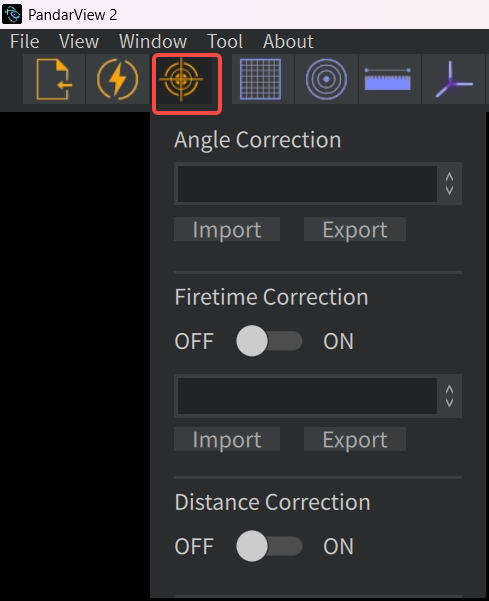
PandarView2 supports the following three types of point cloud correction options:
- Angle Correction: Click Import to load the angle correction file for the lidar and apply the correction.
- Firetime Correction: Click Import to load the firetime correction file for the lidar and apply the correction.
- Distance Correction: Enable this option to apply the correction. (Note: This option corrects distance errors caused by the misalignment of the lidar's emission center and geometric center.)
2.4 Laser Channel Selection
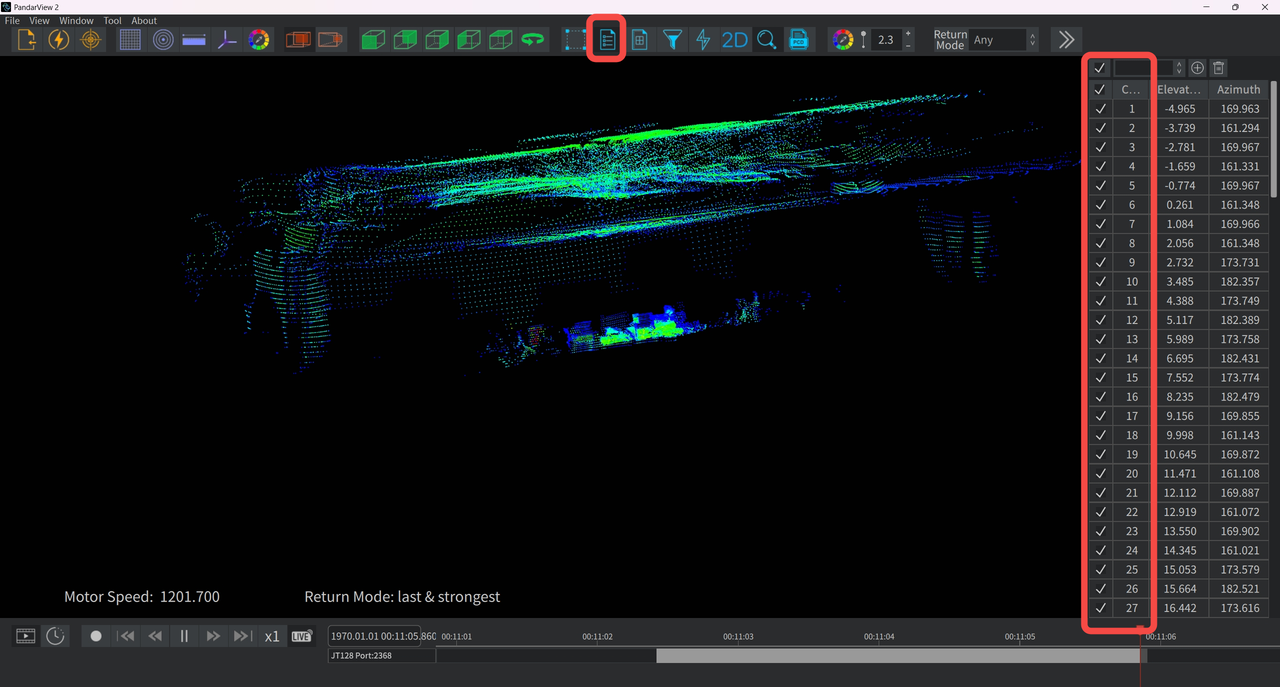
As shown below, click the icon (Channels) on the PandarView2 toolbar to view or modify the laser channels and corresponding angle parameters for the currently displayed point cloud. By checking or unchecking the checkbox on the leftmost column of the table, user can control the visibility of the point cloud for each channel.
2.5 Point Cloud Selection and Spreadsheet
As shown below, click the left icon (Select) on the PandarView2 toolbar to manually select and highlight a group of data points in the current point cloud area by dragging the mouse. Click the right icon (Spread Sheet) to view detailed data for the selected points.
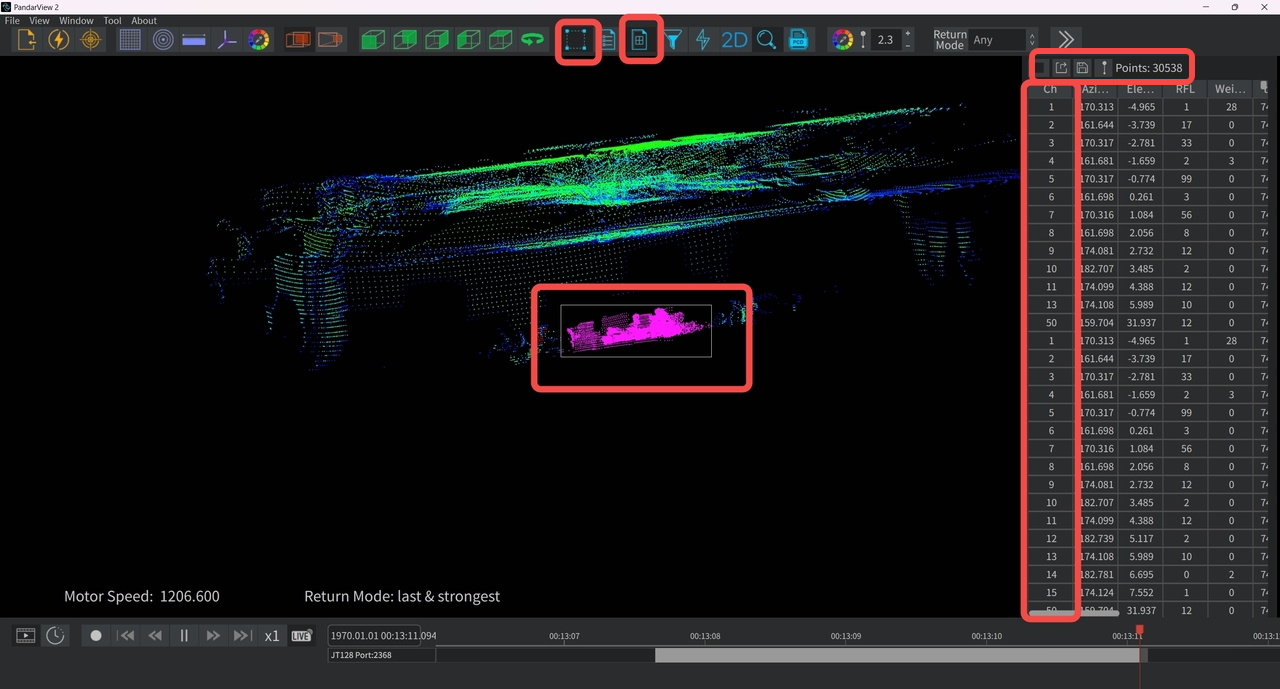
The three small buttons at the top of the spreadsheet, from left to right, have the following functions:
| Button Name | Description |
|---|---|
| Select All | Display detailed data for all points in the frame. Clicking again shows only the selected points. |
| Export Points Info | Export the current spreadsheet as a CSV file. On Ubuntu, include the .csv extension in the filename. |
| Save Column Order | Save the current column order. |
The column headers in the spreadsheet are defined as follows (Note: The parameters displayed may vary by product model*):
| Column Name | Description |
|---|---|
| Ch | Channel number |
| Ele | Vertical elevation angle |
| AziCorr | Corrected horizontal azimuth angle |
| t | Point cloud timestamp |
| Dist | Distance |
| Field | Mirror number for AT series lidar |
| Rfl | Reflectivity |
| AziState | Azimuth state for calculating firetime offset |
| Azi | Uncorrected horizontal azimuth angle |
| Weight Factor | Point cloud confidence (e.g., rain/fog noise tagging) |
2.6 Point Cloud Filtering
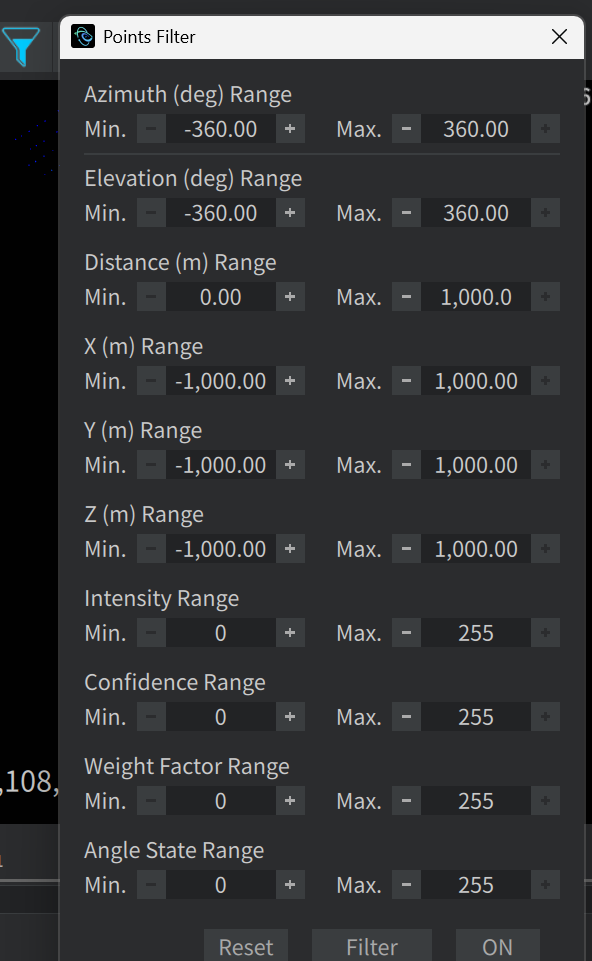
As shown below, click the icon (Points Filter) on the PandarView2 toolbar to set valid ranges for various parameters, displaying only data points that meet the criteria.
For example, setting the Weight Factor range can filter out marked noise points (e.g., rain, fog, or dust).
Note: Point cloud filtering settings only affect the point cloud displayed in the current PandarView interface and do not affect recorded and saved .pcap files.
2.7 Point Cloud Tracks
As shown below, right-click the time track at the bottom of the PandarView2 interface to display the following options:

| Option | Description |
|---|---|
| Cut by Time | Trim point cloud by timestamp and save as .pcap file. |
| Cut by Frame | Trim point cloud by frame and save as .pcap file. |
| Export Detail | Export point cloud data for specified frames to a CSV file. |
| Delete Track | Delete the point cloud track. |
| Cancel | Close the menu. |
2.8 Other Point Cloud Display Controls
The following image shows other commonly used toolbar functions in PandarView2, listed from left to right:

| Button Name | Description |
|---|---|
| Laser Tracing | Display the lidar's laser beams. |
| State Info | Display status information (e.g., motor speed, return mode, .pcap filename) in the bottom-left corner of the point cloud display area. |
| Dump PCD | Export the current frame as a .pcd (Point Cloud Data) file and specify the file location. |
| Point Size | Set the display size of data points. |
| Return Mode | Select the return mode for point cloud display. |
3 Common PandarView Issues Troubleshooting
3.1 Point Cloud Real-time Streaming Display
3.1.1 Point cloud not displayed
-
Ensure the host computer's firewall is disabled or allow the PandarView2 program through the firewall.
-
Check lidar Ethernet parameter settings
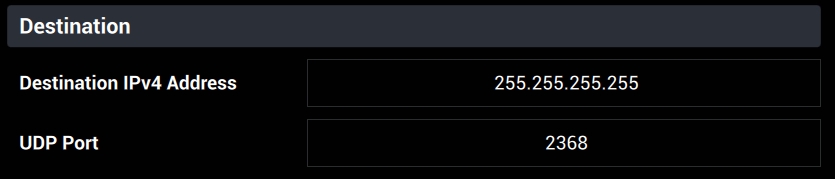
- If the lidar is configured in broadcast mode, change the UDP Port option in the PandarView2 - 'Listen for Data' popout to the actual destination port value (default factory setting is 2368, actual value can be obtained from the lidar control page, as shown below).
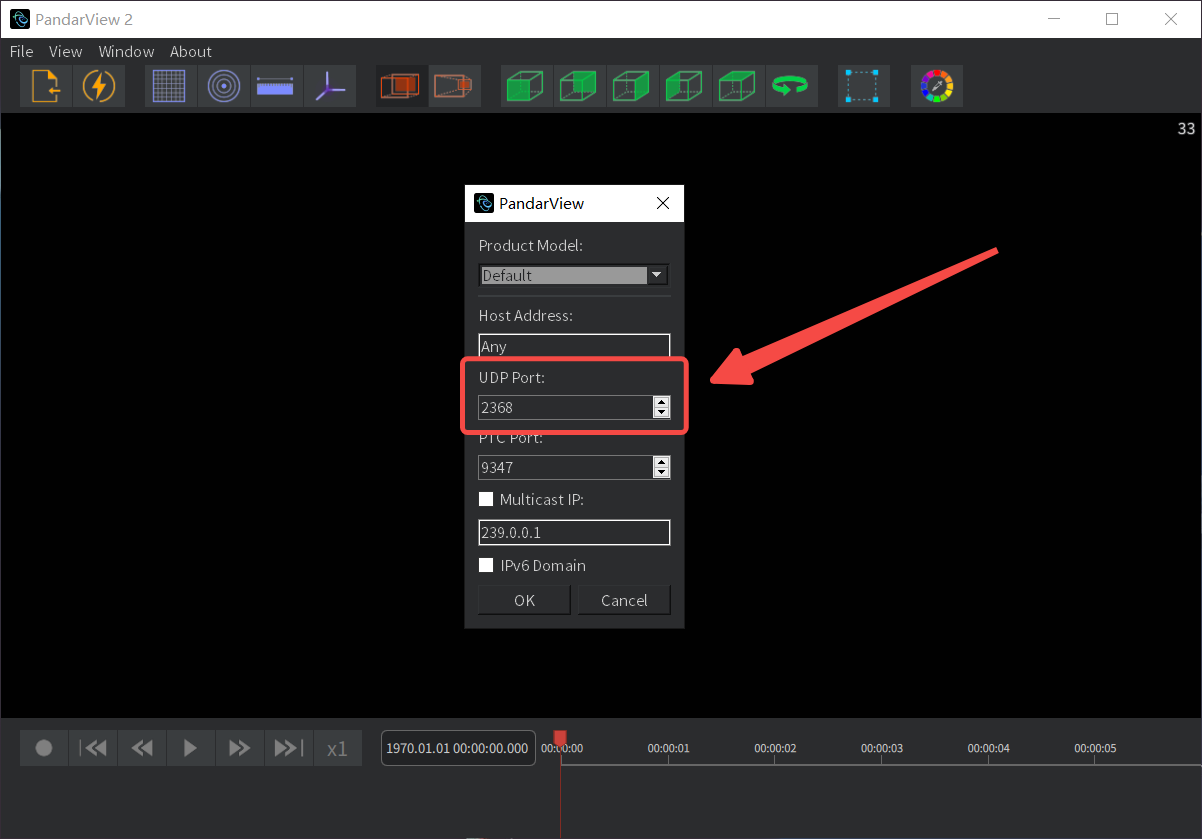
Web control page (Pandar series/QT series/XT series)
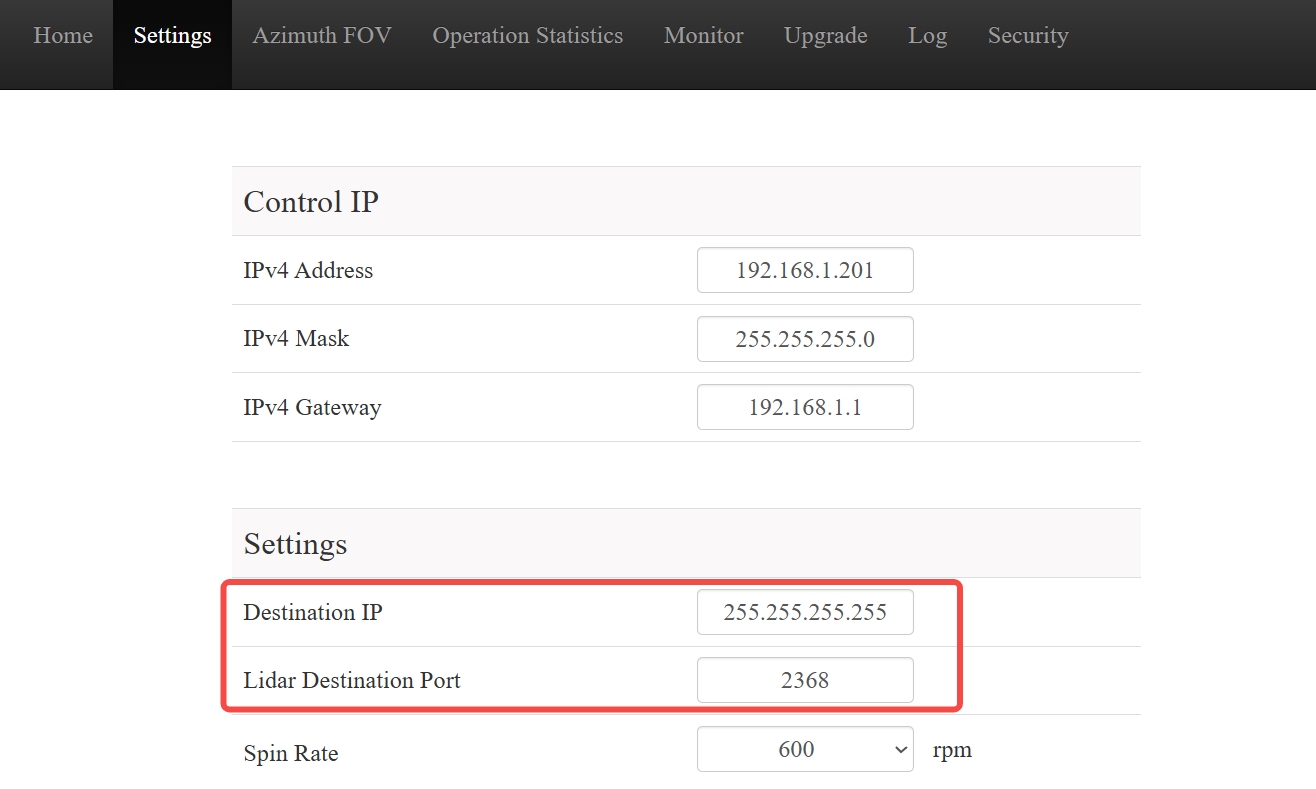
lidarUtilities interface (OT128 / AT128P)
-
If the lidar is configured in unicast mode, set the host computer's IP address to the lidar's Destination IP (this parameter can be obtained from the lidar control page) and change the UDP Port option in the PandarView2 - 'Listen for Data' popout to the actual destination port value.
-
If the lidar is configured in multicast mode, change the UDP Port option in the PandarView2 - 'Listen for Data' popout to the actual destination port value, and select the Multicast IP option in the popout, configuring it to the lidar's Destination IP (this parameter can be obtained from the lidar control page).
Note: For detailed configuration of lidar multicast mode, refer to Configure Ethernet - Multicast.
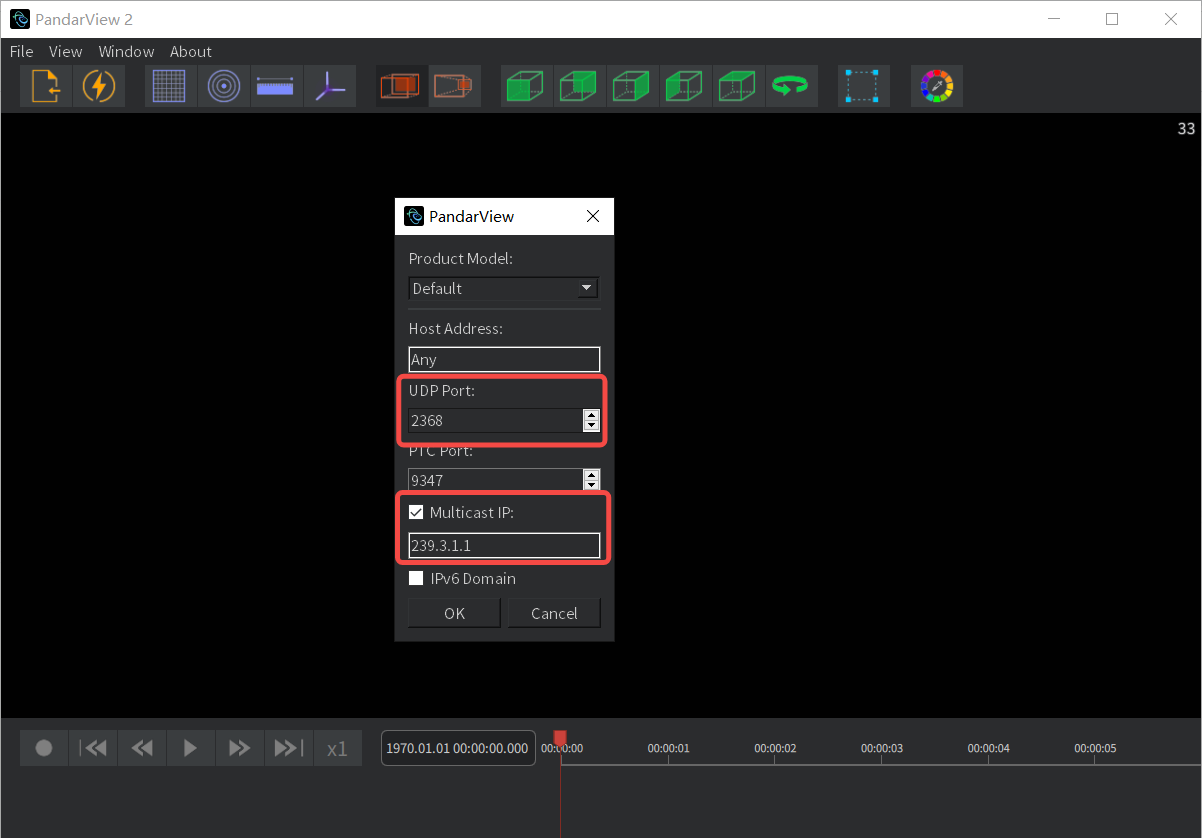
Note: If the host computer uses an Ethernet-to-USB adapter to connect to the lidar, there is a small probability of point cloud not displaying in PandarView2. It is recommended to use a computer that can directly connect to the lidar via Ethernet cable for point cloud live display.
3.1.2 Incomplete point cloud display
- Check if the lidar lens is clean (if dirty, clean it according to the "Instrument Maintenance" section in the product user manual).
- Log in to the lidar control page via the webpage or LidarUtilities software and verify if the Azimuth FOV parameter settings are correct (if part of the horizontal FOV is disabled).
- Check if lidar's current motor speed is stable at the preset value (check the Motor Speed value displayed in PandarView2). Ensure the lidar is securely mounted to avoid vibrations during operation.
- Check if the host computer's hardware performance and driver configuration meet the requirements (recommended: at least 16GB RAM, support a dedicated graphics card with correct graphics driver version).
- Check if the Ethernet on the host computer is overloaded or if other devices are transmitting data simultaneously, causing network overload and packet loss. It is recommended to connect only one lidar to the host computer, disconnect other devices and power cycle the lidar to check if the issue persists.
3.2 Point Cloud File Playback
3.2.1 Point cloud not displayed
- Ensure the PandarView2 software is the latest version from the official website.
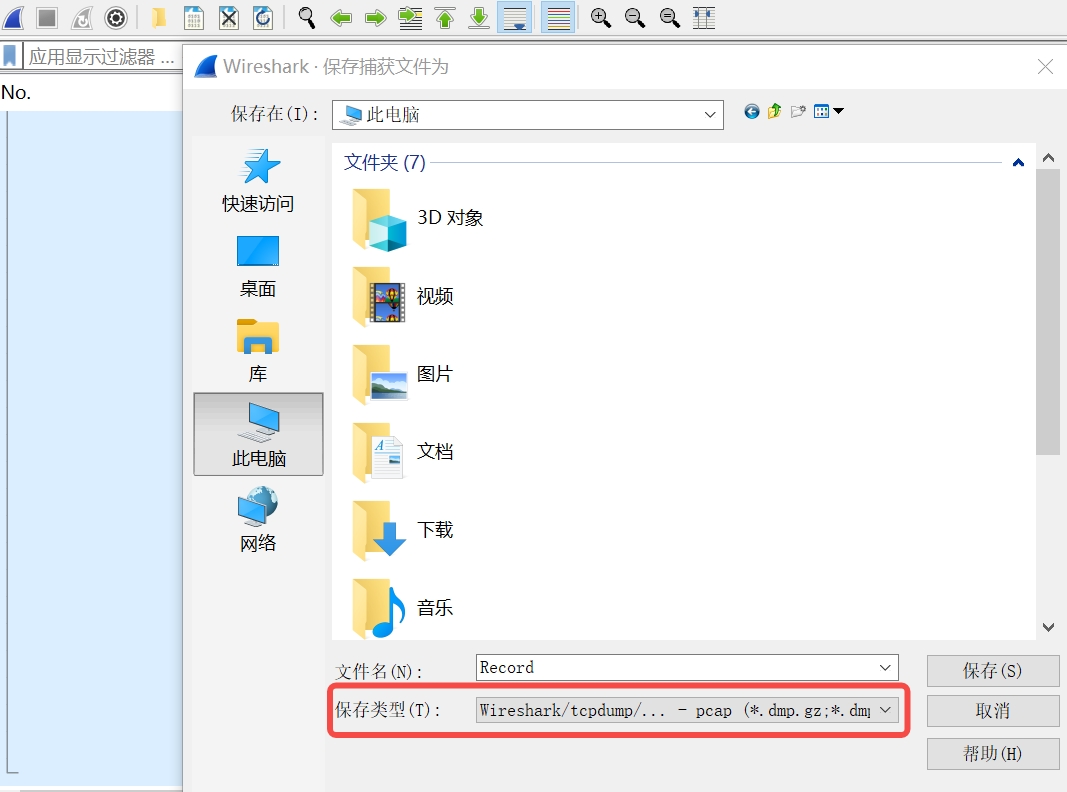
- Check if the point cloud file is in
.pcapformat (Note: When recording point cloud files using Wireshark, the default save format is.pcapng. Users need to manually change it to.pcapformat).
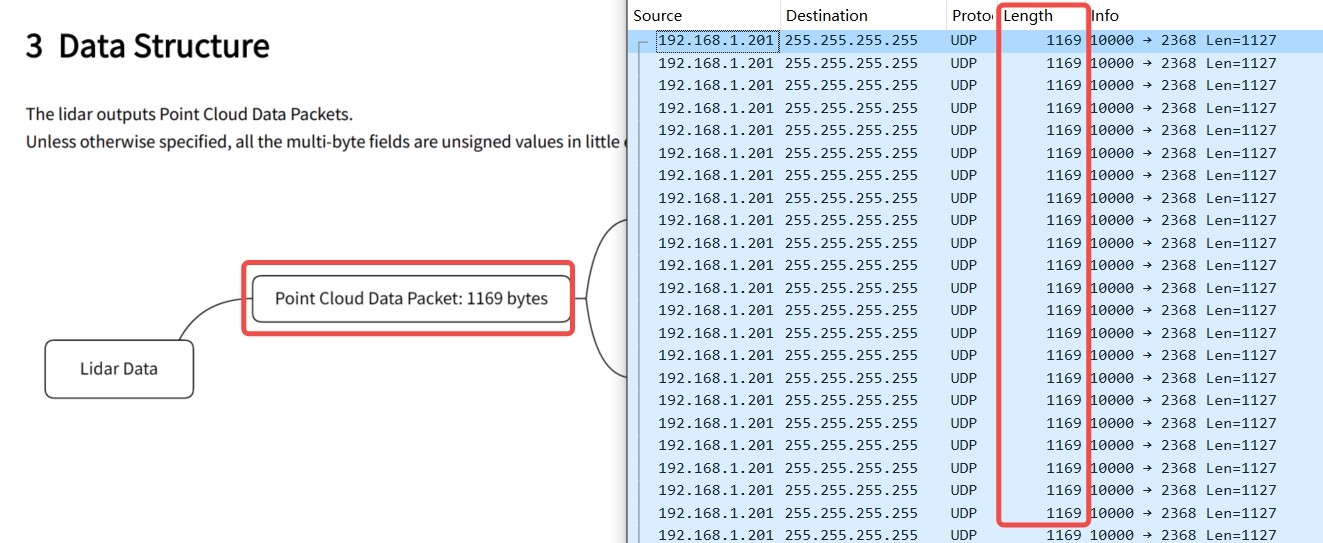
- Check if the UDP packet data length and format in the point cloud
.pcapfile are correct: Use Wireshark to view and compare with the UDP packet length defined in the product user manual (using QT128 as an example, as shown below).
3.2.2 Abnormal point cloud behavior
- If the point cloud arrangement is irregular, Check if the angle correction file corresponding to the point cloud file has been properly imported (steps shown as below).
- If the point cloud flickers during playback, check if the
.pcapfile has packet loss (use Wireshark or contact Hesai technical support). If there is no packet loss, verify if the host computer's hardware performance and driver configuration meet the requirements (refer to the troubleshooting methods in the live display section), restart the computer or test with another computer.
If other point cloud display issues persist in PandarView2 after following the above steps, please contact Hesai technical support.
Find it useful?