Visualize Point Cloud with RVIZ
1 Overview
Hesai provides the HesaiLidar_ROS_2.0 development kit, offering developers a complete solution for applying lidar data in the RVIZ visualization tool under ROS (Robot Operating System) framework in an Ubuntu system environment.
This document systematically introduces the setup process of the RVIZ tool in the ROS environment, point cloud visualization configuration methods and general troubleshooting methods for common issues, with the purpose to help developers quickly deploy ROS-based LiDAR application systems.
2 Application Method
The setup and configuration process for the RVIZ visualization tool is as follows:
2.1 Environment Preparation
1. Prepare a PC with Ubuntu installed and set up the ROS environment.
Note: For ROS installation methods, refer to http://wiki.ros.org.
2. Check the ROS version:
- ROS1
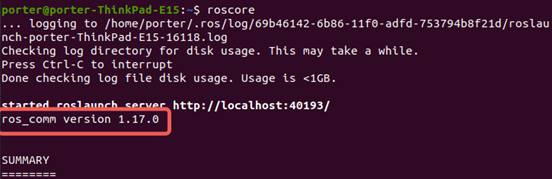
User can check the current ROS1 version by entering roscore in the terminal, as shown below:
- ROS2
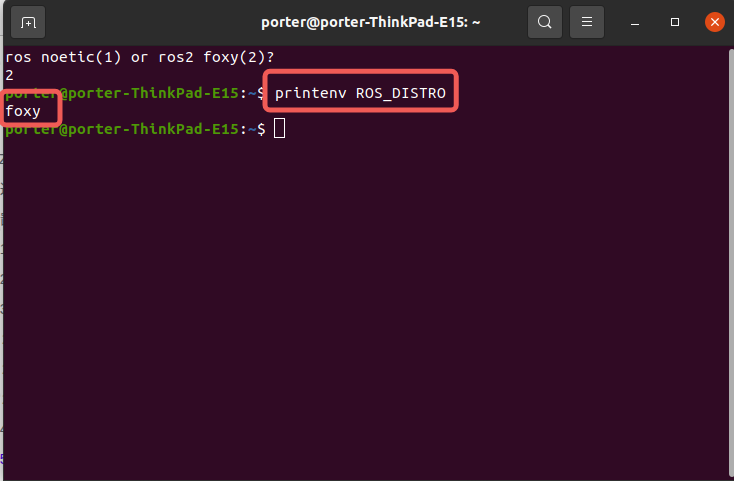
User can check the current ROS2 version by entering printenv ROS_DISTRO in the terminal, as shown below:
3. Connect the lidar: For the detailed lidar connection configuration methods, refer to Configure Ethernet or Configure Serial Connection.
2.2 Build the ROS Project
1. Install Boost
Run the following commands to install Boost:
sudo apt-get update
sudo apt-get install libboost-all-dev
2. Install Yaml
Run the following commands to install Yaml:
sudo apt-get update
sudo apt-get install -y libyaml-cpp-dev
3. Clone HesaiLidar_ROS_2.0
Create a new folder and a src subfolder.
Navigate to the src directory, open the terminal, and execute the following command to download HesaiLidar_ROS_2.0:
git clone --recurse-submodules https://github.com/HesaiTechnology/HesaiLidar_ROS_2.0.git
2.3 Modify the config.yaml File
Navigate to the downloaded HesaiLidar_ROS_2.0 project folder, open the config.yaml file and configure the relevant parameters as follows:
lidar:
  - driver:
      use_gpu: false
      source_type: 1                         # 1: Real-time connection to lidar
                                             # 2: Use pcap file playback
                                             # 3: Use point cloud data in ROS bag
                                             # 4: Obtain point cloud data via serial communication
      lidar_udp_type:                        # Configure the lidar's UDP type
      device_ip_address: 192.168.1.201       # lidar's IP address
      udp_port: 2368                         # UDP communication port
      ptc_port: 9347                         # PTC protocol port
      multicast_ip_address: 255.255.255.255  # Multicast IP address
      use_ptc_connected: true                # Configure whether to use PTC connection
··· ···

# 2. Serial communication configuration, modify to the serial port name
      serial_type:
        rs485_com: "Your serial port name for receiving point cloud" # RS485 serial port name
        rs232_com: "Your serial port name for sending cmd"           # RS232 serial port name
        point_cloud_baudrate: 3000000/3125000                        # Serial port baud rate
··· ···
2.4 Compile and Run RVIZ
Navigate back to the root directory of the folder and run the following commands:
1. ROS1
  catkin_make
  source devel/setup.bash
  roslaunch hesai_ros_driver start.launch
2. ROS2
colcon build --symlink-install
. install/local_setup.bash
Note: In . install/local_setup.bash, there is a space between . and install.
- For ROS2-Dashing
ros2 launch hesai_ros_driver dashing_start.py
- For Other ROS2 Versions
ros2 launch hesai_ros_driver start.py
2.5 Point Cloud Check
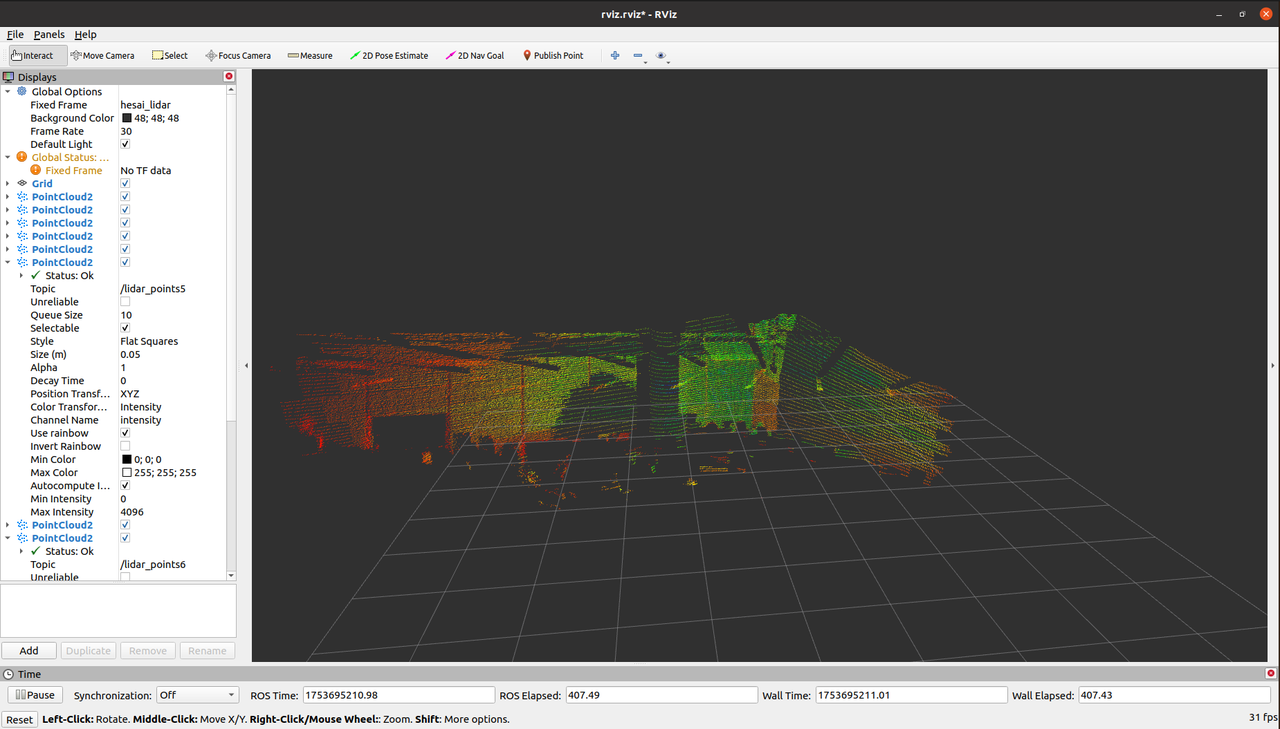
After completing the above steps, user can use RVIZ to view the real-time point cloud from the lidar.
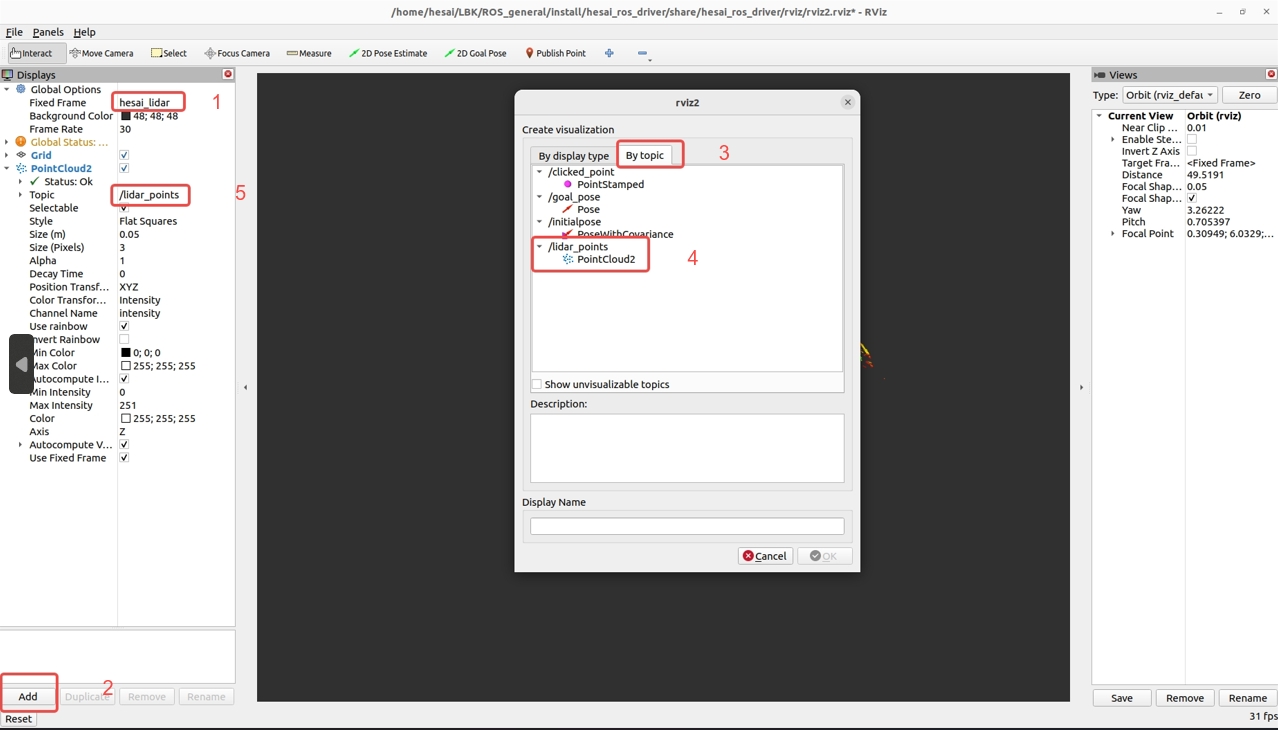
When opening the RVIZ interface, user needs to configure the parameters of 'Frame' and 'Topic' first. The specific operation steps are shown in the numbers indicated in the image below:
After completing the above configurations, user can view the point cloud data in RVIZ's main interface, as shown below:
3 Common RVIZ Issues Troubleshooting
3.1 Unable to Execute catkin_make
The system displays the following error message:
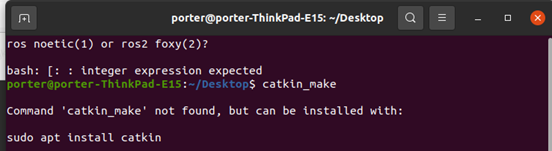
Solution:
- Check whether the ROS environment exists in the current setup. Refer to Environment Preparation.
3.2 Unable to Execute source devel/setup.bash
The system displays the following error message:

Root Cause: This issue is due to folder permission limitation.
Solution:
- Run
cd develto navigate into the folder. - Execute the following command to add execution permissions to the file, then run
source ./setup.bashto resolve the issue:
chmod +x setup.bash
3.3 RVIZ Window Opens but No Point Cloud is Displayed
Solution:
- First, check whether the lidar is correctly connected. Use tools such as Wireshark or PandarView to verify whether the lidar is transmitting data and displaying point cloud images.
- Check whether the IP address and UDP port in the
config.yamlfile match the information obtained from Wireshark. Refer to Modify theconfig.yamlFile to resolve the issue.
Find it useful?