Use LidarUtilities
1 Overview
LidarUtilities is the upper computer control software for Hesai lidar products. It can be used to read information such as the lidar model, version, and operating status, and it supports parameter configuration and firmware upgrades.
2 Common Operation Instructions
2.1 Download and Installation
The latest version of PandarView2 (v2.1.8) includes the LidarUtilities software. Download the latest version of PandarView to install LidarUtilities simultaneously.
Click [Tool], and select [Lidar Utilities].
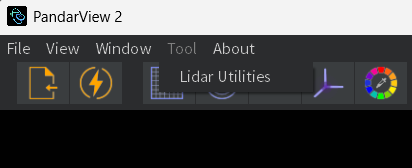
Before using LidarUtilities to connect to the lidar, ensure the following:
- The lidar is functioning properly.
- The computer can receive point cloud UDP data packets, which can be verified using Wireshark.
2.2 Launch and Connect
2.2.1 Ethernet Connection Mode
-
Refer to How to Establish an Ethernet Connection to configure the receiving host's IP address.
-
Enter the lidar's source IP address (IPv4 Address) and PTC/PTCS port number at the top of the LidarUtilities main interface. (Default IPv4 Address: 192.168.1.201, PTC/PTCS Port: 9347).
-
Select the product model and click [connect].
-
Once connected successfully, the red dot in front of the product model will turn green.

2.2.2 Serial Connection Mode (Supported Only by JT16)
-
Refer to How to Establish a Serial Connection to confirm the serial port number used by the lidar.
-
Enter the lidar's RS485 serial port number, UART serial port number, and baud rate (3125000/3000000) at the top of the LidarUtilities main interface.
-
Select the product model and click [connect].
-
Once connected successfully, the red dot in front of the product model will turn green.

2.3 User Interface Display
After successfully connecting to the lidar, the LidarUtilities main interface will appear as shown below:

- Currently, LidarUtilities supports the following lidar models: AT128P, AT360, ATX, JT128, JT16, OT128, FT120, FTX, ETX. Other Hesai lidar models can be connected and configured directly via the web interface.
Note: The examples below use the AT128P model. The parameter information displayed in the LidarUtilities interface may vary for other models. Refer to the user manual for the specific model.
2.3.1 Lidar Information
SN: Device Serial Number
PN: Part Number
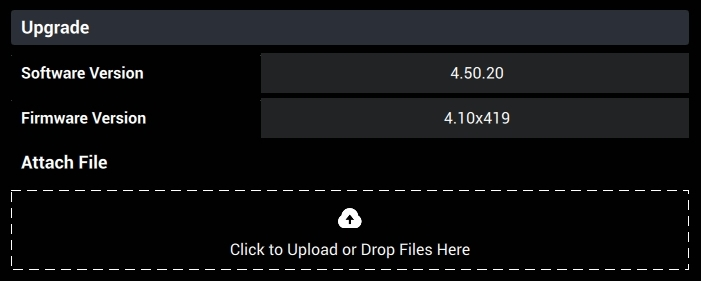
Software Version: Software Version Number
Firmware Version: Firmware Version Number
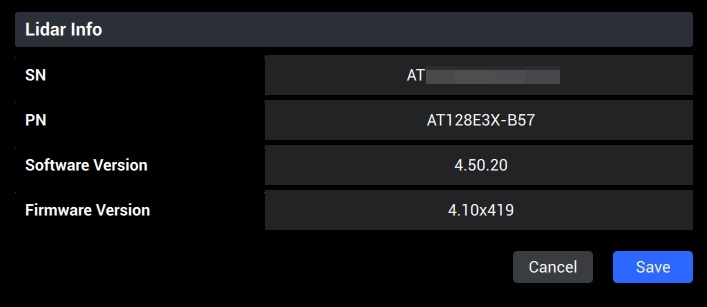
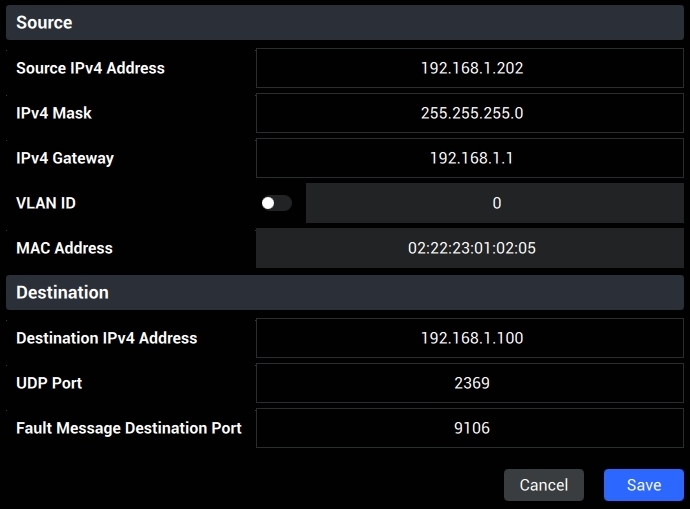
2.3.2 Network Connection Parameters
Source IPv4 Address: Lidar source IPv4 address (default: 192.168.1.201)
IPv4 Mask: Subnet mask (default: 255.255.255.0)
IPv4 Gateway: Gateway IP address (default: 192.168.1.1)
VLAN ID: VLAN switch and VLAN ID settings (default: OFF)
MAC Address: Lidar MAC address (not editable)
Destination IPv4 Address: Destination IPv4 address for point cloud UDP (default: 255.255.255.255)
UDP Port: Point cloud UDP port number (default: 2368)
Fault Message Destination Port: Fault message UDP port number (default: 2368)
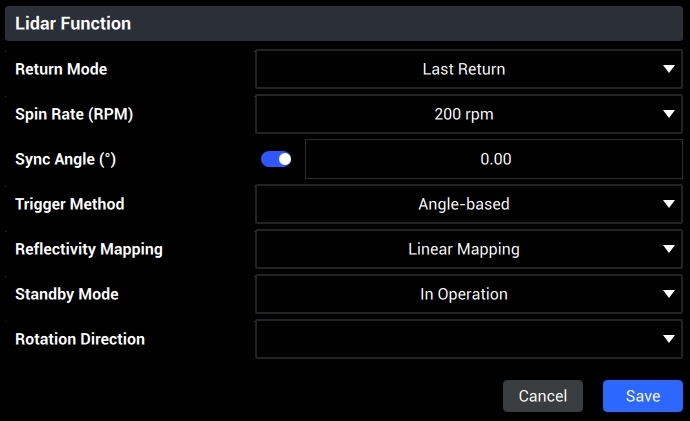
2.3.3 Lidar Features
Return Mode: Return mode, Single Return: strongest/last/first; Dual Return: last and strongest/first and strongest
Sync Angle: Synchronization angle; the lidar rotates to this angle at every whole second (default: OFF)
Trigger Method: Laser triggering method (default: angle trigger; optional: time trigger)
Reflectivity Mapping: Reflectivity mapping mode (default: linear mapping; optional: non-linear mapping)
Standby Mode: Operating/standby mode (in standby mode, the motor stops, and the lidar does not emit laser)
Spin Rate (RPM): Motor rotation speed (default: 200 RPM; optional: 400 RPM)
Rotation Direction: Motor rotation direction (default: clockwise; optional: counterclockwise)
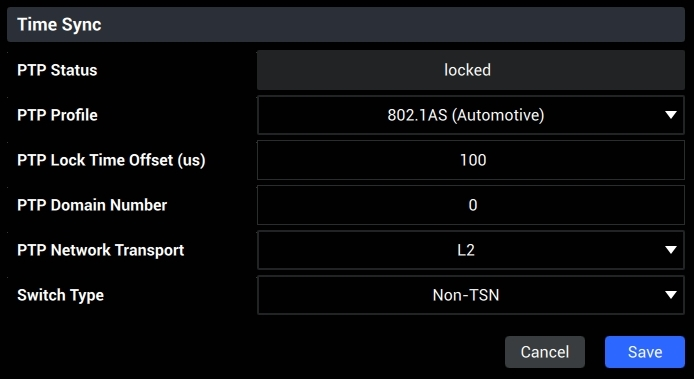
2.3.4 Time Synchronization
PTP Status: PTP synchronization status
| PTP Status | Description |
|---|---|
| Free run | The lidar has not received any PTP packets and is running on its local clock. |
| Frozen | The lidar was synchronized but has not received valid PTP packets for a long time. |
| Locked | The lidar is successfully synchronized with the PTP master clock. |
| Tracking | The lidar is receiving PTP packets and attempting to synchronize. |
PTP Profile: PTP synchronization protocol (802.1AS / 802.1AS Automotive)
PTP Lock Time Offset: Maximum time offset threshold for PTP lock status (default: 1us)
PTP Domain Number: Domain sequence number of the local PTP clock (default: 0)
PTP Network Transport: PTP network transport protocol (default: L2)
Switch Type: Network switch type (TSN / Non-TSN)
2.3.5 Operational Status Statistics
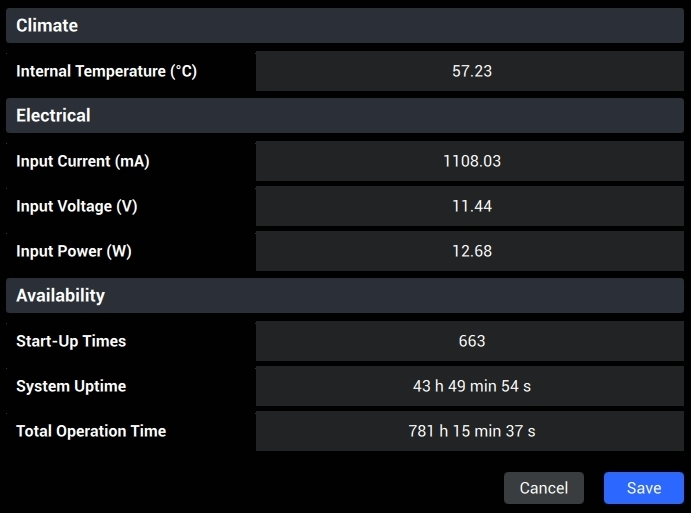
The "Operational Status" page displays key operating data of the lidar, including:
Internal Temperature: Current internal temperature of the lidar
Input Current: Input current measured at the lidar connector
Input Voltage: Input voltage measured at the lidar connector
Input Power: Input power measured at the lidar connector
Start-Up Times: Number of times the lidar has been booted
System Uptime: Operation since the last start-up
Total Operation Time: Lidar's total operation time
2.3.6 Firmware Upgrade
-
Preparation
- Contact Hesai technical support to obtain the upgrade file.
- During the upgrade, it is recommended to cover the lidar's optical window with a protective cover or other opaque material.
-
Upgrade Steps
- Click the [Upload] button and select the upgrade file.
-
After the Upgrade
- Click [Reboot Lidar] in the top-right corner or reconnect the lidar.
- After refreshing the page, the new version number will appear in the basic information section.
2.3.7 Logs
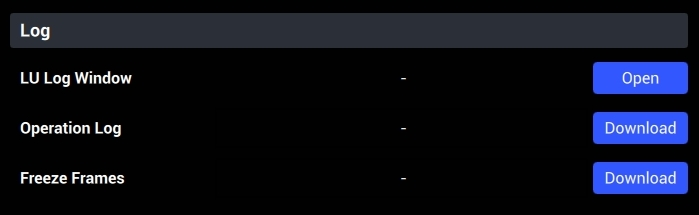
This page allows users to quickly view logs recorded by the lidar, including connection status, BytesFlow (data flow) on/off, model switching prompts, error and warning messages, and detailed output information during firmware upgrades. These logs help Hesai quickly locate and analyze the cause of faults.
2.3.8 Sending PTC Commands
This page provides a TCP control interface, allowing users to send TCP API commands directly to the lidar. For details, refer to Sending TCP API Commands through LidarUtilities.
Find it useful?